Find your space.
Keep your files.
Start with a measurement. Work out what occupies the drive before choosing what can go.
Establish the baseline
Open File Explorer → This PC and note the available space on the affected drive. Write down the time and close any large download or export you control. You will compare against this number after cleanup.
Decide whether you need a small amount of working room or space for a particular installation. A target such as 10 GB is a goal, not evidence that 10 GB of expendable files exists.
Start with Windows
- Open Settings → System → Storage. Inspect the categories and open the one you want to investigate.
- Review temporary-file choices. Read each category before selecting it. Check Downloads and Recycle Bin contents yourself rather than treating either as disposable.
- Review automatic cleanup separately. If you use Storage Sense, check its schedule and retention choices before enabling it.
Microsoft documents Storage Sense as a system-drive feature. For another drive, use Storage → Advanced storage settings → Storage used on other drives. See Microsoft’s Storage Sense instructions. This is a useful starting point if you want to avoid installing another utility.
Review the large items
If storage categories do not explain the problem, inspect a folder with a disk-space analyzer such as WizTree or TreeSize. Start with your own downloads, exports and media collections. Expand a large folder and check actual file paths; a category label alone is not a removal decision.
| Finding | Useful next check |
|---|---|
| Old installer | Can you obtain the exact installer again? Do you need it for offline repair or a licensed version? |
| Application cache | Is this a documented cache location, and can the application recreate it? Use the application’s own cleanup when available. |
| Large personal file | Would a verified copy on another drive meet your needs? Copying alone does not remove the original or free its space. |
| Unknown system item | Leave it in place while identifying its owner. Avoid removing Windows or application files by size or extension. |
Use the tool comparison to choose an analyzer. It explains edition and licensing differences.
Separate local and cloud space
Deleting a synced item and releasing its local download have different consequences. If you want to keep a OneDrive file online, investigate Files On-Demand instead of deleting the item. Microsoft explains the local-versus-OneDrive options. Check sync completion and offline requirements first. A cloud-only file may need a download when you open or inspect its contents.
Follow it in WhimRoom
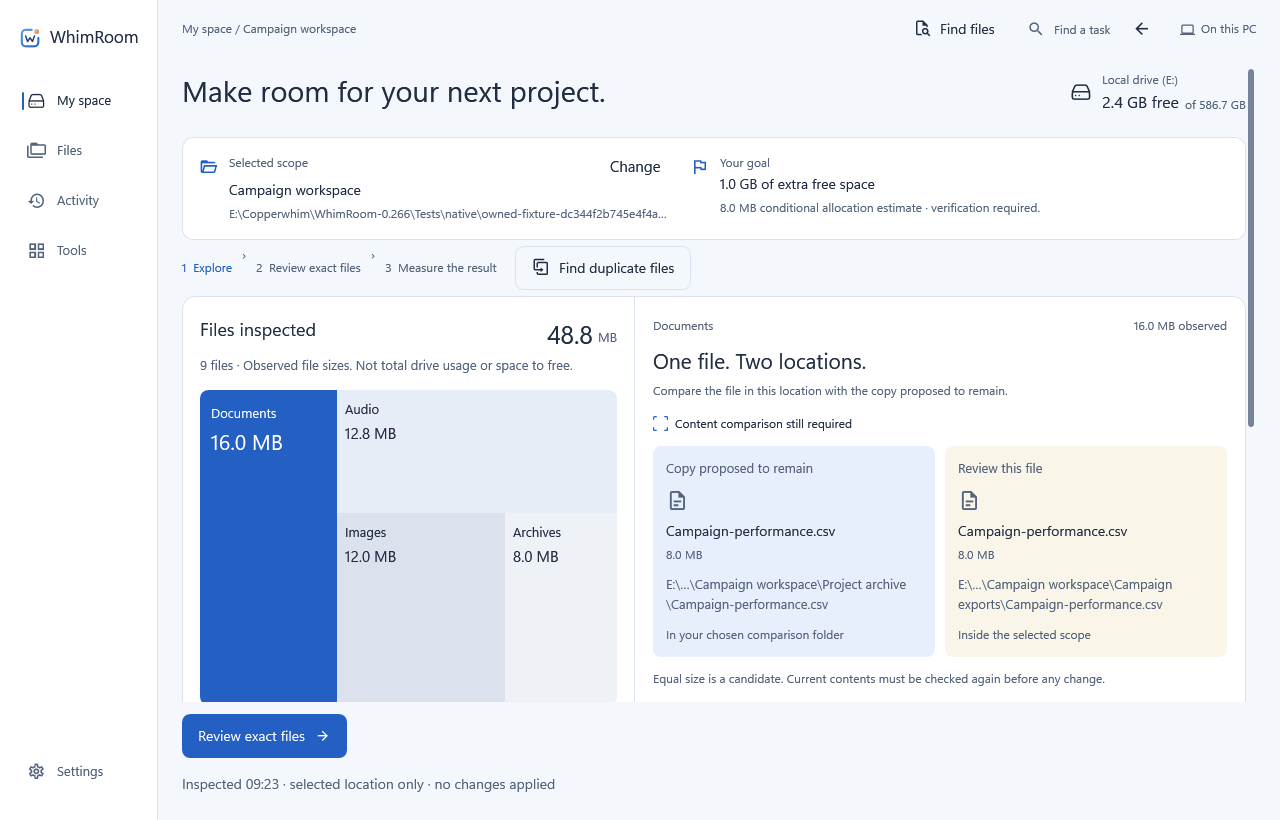
In My space, choose the drive or folder and optionally enter a space goal. Inspect the scope. Review the observed coverage, candidate paths and retained copies before opening a file-changing plan. Compare the proposed removal method with the recovery options.
Measure what changed
Read the operation’s completed, skipped and failed items, then check the drive’s available space again. Selected file sizes and reclaimed disk space need not match: allocation, compression, shared file data and other running applications affect the measurement. A partial inspection also does not account for the entire drive.
If little changed, check whether files were only copied, recycled or skipped. Keep the result record; do not keep deleting unrelated items merely to reach the original target.
Sources and scope
Reviewed 1 November 2026. External instructions are linked to their publishers. Windows labels can vary by version. WhimRoom instructions describe 0.266; its public Store release is still in preparation.